
Guide
Formatting Legal & Research Documents: Common Mistakes (and How to Process Confidential Files Without Uploading Them to an AI)
October 23, 2026 · 8 min read
Legal and research documents live or die by their formatting. A misaligned clause number, a stray tracked change left in the file, or an inconsistently capitalized defined term can undermine hours of careful work. In regulated settings, it can create real risk. Yet most of the tools people reach for to "clean up" a document ask you to upload it first. For confidential material, that is exactly the wrong trade.
This guide covers the formatting mistakes we see most often in contracts, briefs, grant applications and research papers, how to fix each one properly, and how to process sensitive files without sending them to a server or an AI.
Why legal and research docs are uniquely hard to format
These documents share a few traits that make formatting fragile:
- Many authors, many versions. A contract or paper is edited by several people across weeks, each with their own Word settings and copy-paste habits.
- Structure carries meaning. Clause numbering, cross-references, defined terms and heading hierarchy are not decoration. They are how the document is read and cited.
- Confidentiality is non-negotiable. Deal documents, privileged material and unpublished research cannot be casually handed to a third-party service.
Get the formatting wrong and the damage is subtle: a numbering glitch that makes "Section 4.2" point to the wrong place, or metadata that reveals who edited what and when.
The most common mistakes, and how to fix them
1. Manual numbering instead of real list styles
The single most common error. Someone types "1.", "2.", "3." by hand, or restarts a list in the wrong place. The moment a clause is inserted or deleted, every number downstream is wrong, and cross-references break silently.
Fix: Use Word's built-in multilevel list and heading styles so numbering is generated automatically. Never hard-type a clause or figure number. If a document already has hand-typed numbers mixed with automatic ones, they must be reconciled. That is tedious by hand and the leading cause of "the numbering is broken and I can't fix it."
2. Direct formatting instead of styles
Bolding a heading manually, nudging font sizes, adding blank paragraphs for spacing: this "direct formatting" looks fine until you merge two documents and the formatting fights itself. Headings stop being real headings, so the table of contents and navigation pane fall apart.
Fix: Apply paragraph and character styles (Heading 1, Heading 2, Body) rather than formatting text directly. Clear direct formatting when importing text from another source.
3. Leaving hidden metadata and tracked changes in the file
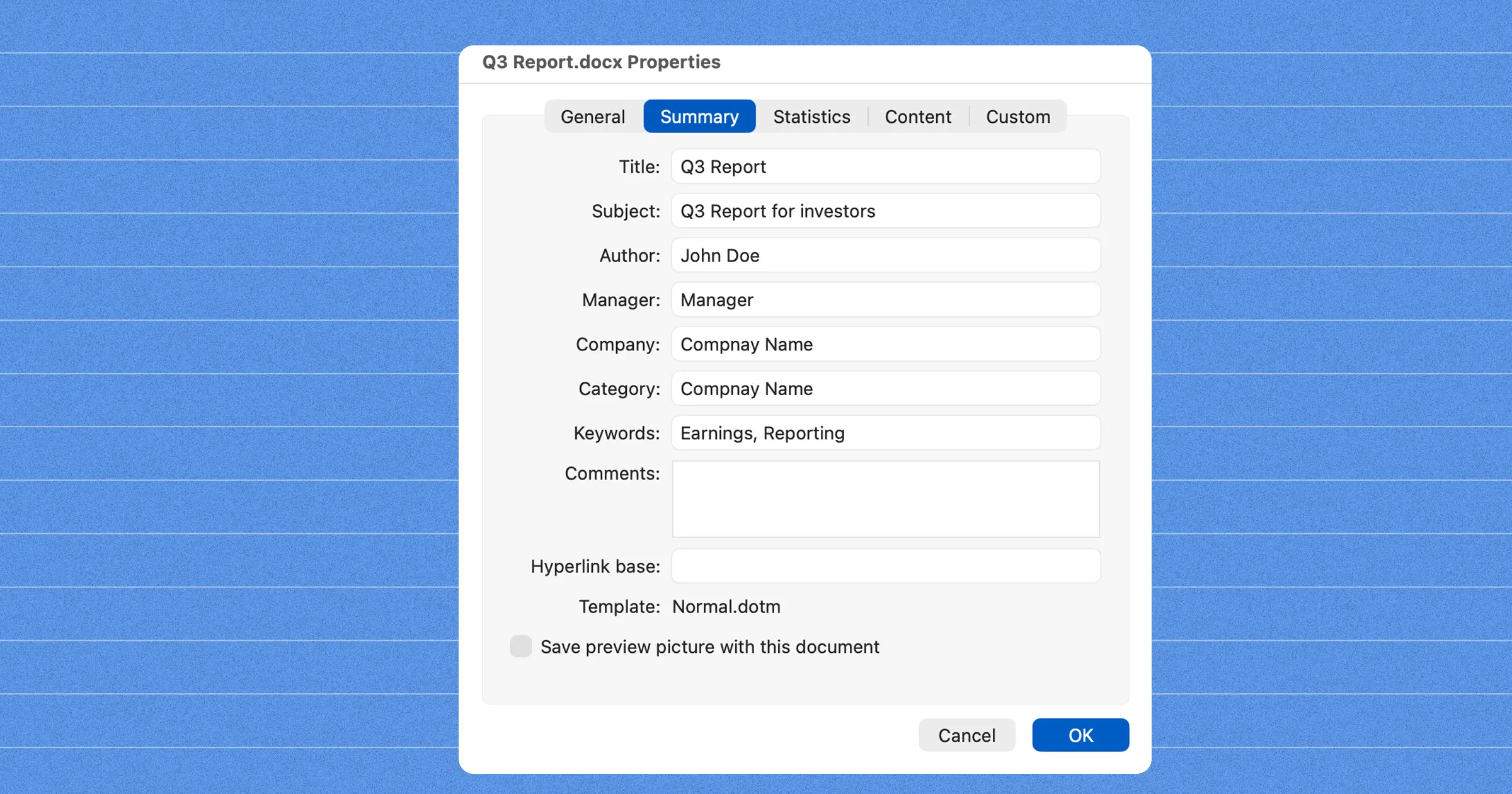
This is the one that causes genuine harm. A .docx quietly stores author names, your organization, edit history, comments, and accepted or rejected tracked changes. Sending a contract with un-accepted redlines, or a "blind" research submission that still names you in the metadata, is a surprisingly common and costly mistake.
Fix: Before sharing, accept or reject all tracked changes, delete comments, and strip document metadata (author, company, revision history). Word's "Inspect Document" can do some of this, but it is easy to miss and easy to forget under deadline.
4. Copy-paste dragging in foreign formatting
Pasting from a browser, a PDF, or another Word file carries hidden styles, fonts and spacing with it. The pasted block looks subtly different and corrupts the document's style set.
Fix: Paste as plain text, then re-apply the document's styles. For whole-document cleanup, normalize fonts and spacing back to the house style in one pass.
5. Inconsistent defined terms
In legal drafting, a defined term ("the Agreement", "Confidential Information") must be capitalized consistently and actually defined somewhere. Drafts routinely contain terms that are capitalized in one clause and lowercase in another, or used but never defined. That is an ambiguity opposing counsel will happily exploit.
Fix: Run a defined-terms check that flags undefined or inconsistently capitalized terms across the whole document, not just the clause you are looking at.
The bigger risk: "just upload it to clean it up"
When formatting gets painful, the fastest-looking option is an online "fix my Word doc" tool or pasting the text into an AI chatbot. For an ordinary document that is fine. For a confidential one it means:
- Your file is transmitted to, and often stored on, a third-party server you do not control.
- It may be retained, logged, or used to train a model, depending on the provider's terms.
- For privileged, regulated, or embargoed material, that upload can itself be a breach of a confidentiality agreement, of client privilege, or of your institution's data policy.
"We delete it after processing" is a promise, not a guarantee, and it is not something you can demonstrate to a client or an ethics board after the fact.
How to safely format and process sensitive documents
The safe principle is simple: the file should never leave the machine it is on. Here is how to work that way.
- Keep processing local. Use tools that run on your own computer and do their work offline, rather than services that upload. If a tool needs an internet connection to format a document, assume the document is leaving.
- Separate "fixing" from "sharing." Do all your style, numbering and defined-term cleanup first, as a distinct step, before anyone sends the file out.
- Always strip metadata before sharing. Treat metadata removal as the last step for any document that leaves your organization, not an optional extra.
- Standardize on a house style. A single set of heading, body and list styles applied consistently prevents most formatting drift before it starts.
- Verify, don't trust. Open the final file, turn on formatting marks, check the navigation pane and the defined-terms list, and confirm no tracked changes or comments remain.
- Numbering is automatic, not hand-typed, and cross-references resolve.
- Headings use styles; the navigation pane looks right.
- All tracked changes accepted or rejected; comments removed.
- Metadata (author, company, history) stripped.
- Defined terms consistent and defined.
- Nothing was uploaded to do any of the above.
The takeaway
Most document formatting disasters come from a handful of avoidable habits: manual numbering, direct formatting, leftover metadata, messy pastes, and sloppy defined terms. All of them are fixable, and for legal and research work, they are fixable without ever handing your confidential file to a server or an AI. The goal is not just a clean-looking document. It is a clean document you can prove never left your control.