Guide
How to Create a QR Code in Microsoft Word (Windows, Mac and Web)
November 16, 2026 · 5 min read
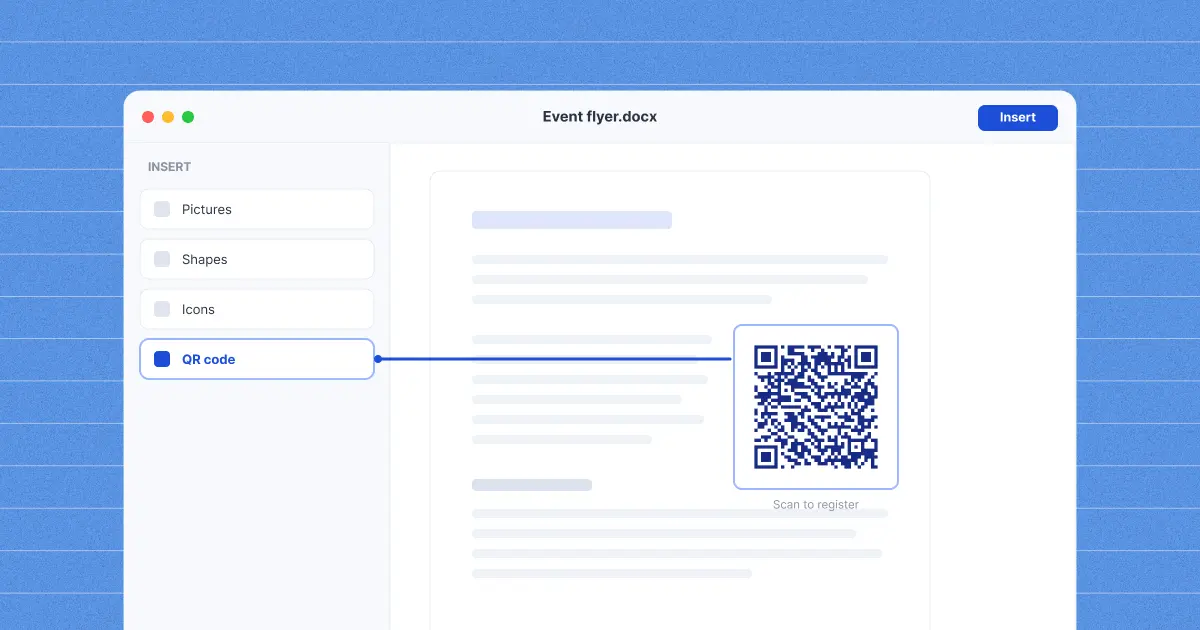
You want a QR code in a Word document: on a flyer, a report cover, a sign-up sheet or a handout. Word can make one, but only in some versions, and the way it does it is well hidden. Here are the three ways to create a QR code in Microsoft Word, which one works on your computer, and how to make sure the code scans once it's printed.
Which method works where
| Method | Windows | Mac | Web |
|---|---|---|---|
| Word's built-in QR field | Yes | No | No |
| QR4Office add-in | Yes | Not listed | Yes |
| Insert a QR code image | Yes | Yes | Yes |
Microsoft documents the built-in field for Word for Windows only, and the QR4Office listing names Word on Windows, on the web and on iPad, but not Word for Mac. On a Mac, inserting a code as a picture is the reliable way.
Method 1: Word's built-in QR code field (Windows)
Word for Windows can draw QR codes with a field called DisplayBarcode. There is no button for it, but it takes a minute:
- Click where you want the code.
- Press Ctrl + F9. Word inserts a pair of grey field brackets. (Typing the curly brackets yourself won't work.)
- Inside the brackets, type
DisplayBarcode "https://example.com" QR \q 3, with your own link in the quotes. - Right-click the field and choose Toggle Field Codes, or press Alt + F9 to switch every field in the document at once. The code appears.
A few optional switches change how the code looks. Add them after QR:
\s 150scales the code, as a percentage (from 10 to 1000).\q 3sets error correction from 0 (lowest) to 3 (highest). Higher levels scan more reliably, especially when printed small.\fand\bset the code and background colours as hex values. Keep the code dark and the background light.
To change the link later, right-click the code, choose Toggle Field Codes, edit the address and toggle it back. Because Microsoft supports this field only in Word for Windows, Mac users trying the same steps often get an error instead of a code. Insert the code as a picture instead if the document will be edited on a Mac.
Method 2: The QR4Office add-in (Windows and web)
QR4Office is a free add-in that puts a QR code panel inside Word:
- Go to Insert > Add-ins (or Get Add-ins) and search for QR4Office.
- Add it, then open it from the Insert tab.
- Enter your link, choose colours and size, and insert the code into the document.
Two things to know. It is made by an independent developer rather than Microsoft, and was last updated in January 2023. And its listing says it can send data over the internet, which matters if the link or document is confidential.
Method 3: Insert a QR code as a picture (works everywhere)
The method that works in every version of Word, Mac included, is to make the code first and insert it as an image. It also gives you the most control over how the code looks:
- Make the code with our free QR code generator. It runs in your browser, so the link is never uploaded, and the code never expires. You can choose square or dotted modules, your colours and a logo.
- Download it as SVG, which stays sharp at any size. If your version of Word doesn't accept SVG files, download the 2048 px PNG instead.
- In Word, choose Insert > Pictures > This Device (on a Mac, Insert > Pictures > Picture from File) and pick the file.
For a PDF you want people to open from the code, put the PDF online first, then make a code for its link. The generator never sees the PDF itself.
Barcodes, too
The same field makes ordinary barcodes in Word for Windows. Replace QR with a barcode type
and give it the data that type expects. Add \t to print the digits under the bars:
DisplayBarcode "490123456789" CODE128 \tfor a Code 128 barcode, which accepts letters and numbers.DisplayBarcode "490123456789" EAN13 \tfor an EAN-13 product barcode.DisplayBarcode "2345678" CODE39 \d \tfor a Code 39 barcode.
If the data doesn't fit the type, for example letters in an EAN-13, Word shows no barcode.
A different QR code on every page (mail merge)
Making name badges, certificates or letters where each copy needs its own link? Word for Windows can merge QR codes too, with a field called MergeBarcode:
- Put the links in a spreadsheet column, for example a column named Link.
- In Word, go to Mailings > Start Mail Merge, choose the document type, then Select Recipients > Use an Existing List and pick the spreadsheet.
- Click where the code should go, press Ctrl + F9 and type
MergeBarcode Link QR \q 3, using your column's name. - Choose Finish & Merge. Each copy gets the code for its own row.
Like DisplayBarcode, this works in Word for Windows. On a Mac, make the codes as images instead.
Make a QR code that opens a Word document
A QR code can't hold a whole document, but it can hold a link to one. Save the document to OneDrive, SharePoint or Google Drive, share it so anyone with the link can view it, and paste that link into the QR code generator. Before you share it, run Word's Inspect Document to remove comments, tracked changes and your name from the file.
Make sure the code scans
A QR code that looks fine on screen can fail on paper. Before you print or send the document:
- Print it at least 2 cm (0.8 in) wide, and larger if people will scan it from a distance, like a poster on a wall.
- Keep the white border. The blank margin around the code is part of it. Don't crop it, and don't let text wrap tightly against it: set the picture's text wrapping to In Line with Text or Square, with some space around it.
- Keep it dark on light. Light codes on a dark background don't scan in every camera app.
- Test it with your phone on screen, again after exporting to PDF, and once more on a printed copy.
Will the code expire?
No. All three methods make static QR codes: the link is stored in the pattern itself, so the code works for as long as the link does. Codes that stop working are usually dynamic codes from online generators, which send people through the company's server and can be switched off when a free trial ends. Our generator page explains why some QR codes stop working.
The takeaway
On Windows, Word's hidden DisplayBarcode field makes a QR code in seconds. On a Mac, or when you want dotted modules, your colours or a logo, make the code first and insert it as a picture. Either way, test it on paper before it goes out.
- Exporting the document to PDF? Remove the PDF's hidden metadata before you share it.
- Text pasted into the document looks messy? See how to remove formatting in Word without losing your headings.
- Combining several documents into one? Read how to merge Word documents without breaking the formatting.