Guide
How to Make a QR Code for a PDF That Never Expires (Without Uploading It)
November 18, 2026 · 4 min read
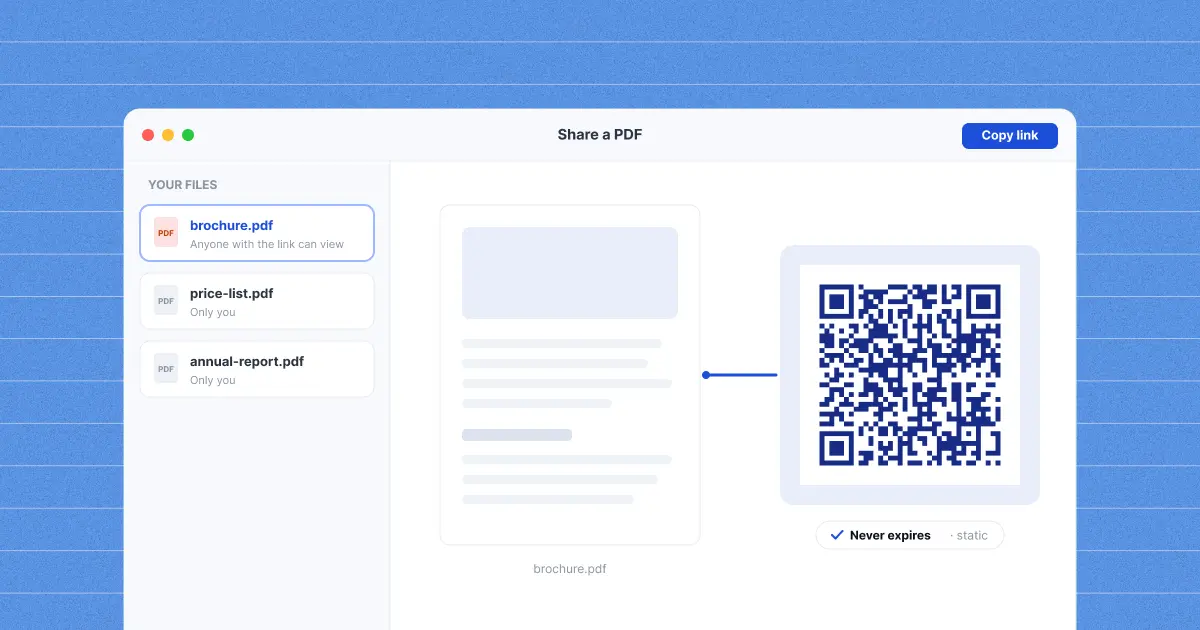
You want people to scan a code on a flyer, a poster or a slide and open a PDF: a menu, a brochure, a price list or a report. Search for a ‘PDF QR code generator’ and nearly every tool asks you to upload the PDF. That works, until the free plan ends and the code stops working, or until you realise your file now lives on a stranger's server. Here is how to make a QR code for a PDF that you control, and that never expires.
Why most PDF QR codes expire
A QR code can't hold a PDF; it holds a link. When a QR company hosts your PDF, the code points at their copy, usually through a redirect on their server. That has two consequences:
- The code depends on their account. If the free trial ends, the plan changes or the company closes, every printed code stops working.
- Your file lives on their server. Fine for a menu, not for a confidential report or anything under NDA.
The fix is to split the job in two: keep the PDF somewhere you control, and make a static code that points straight at it. A static code stores the link in the pattern itself, so it can't be switched off.
How to make a QR code for a PDF, step by step
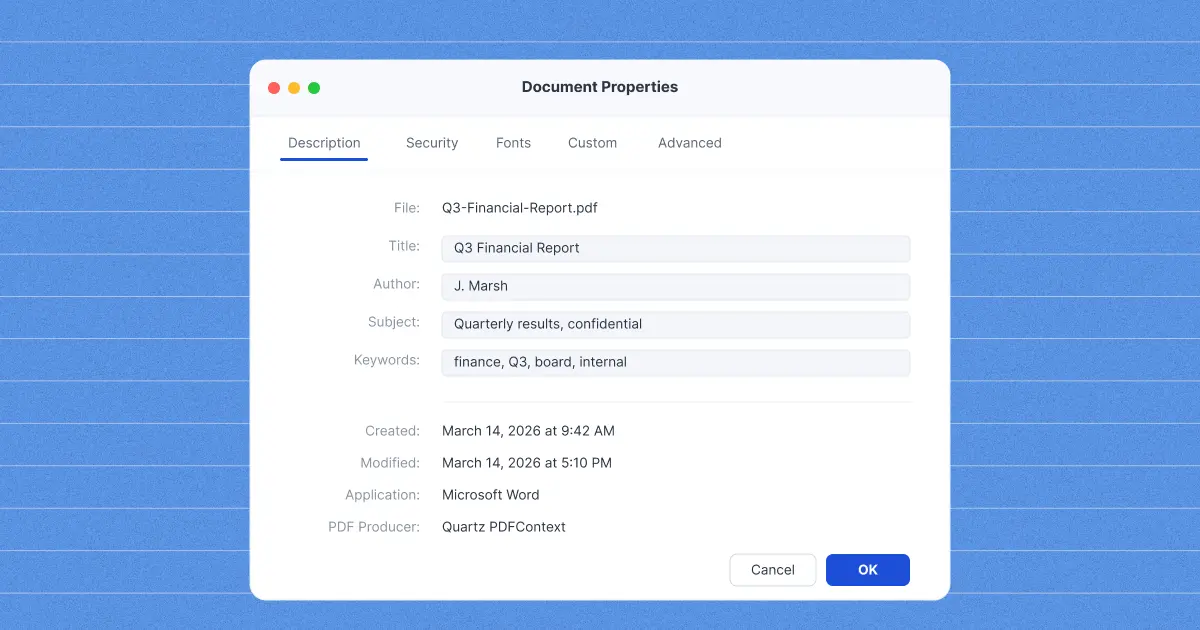
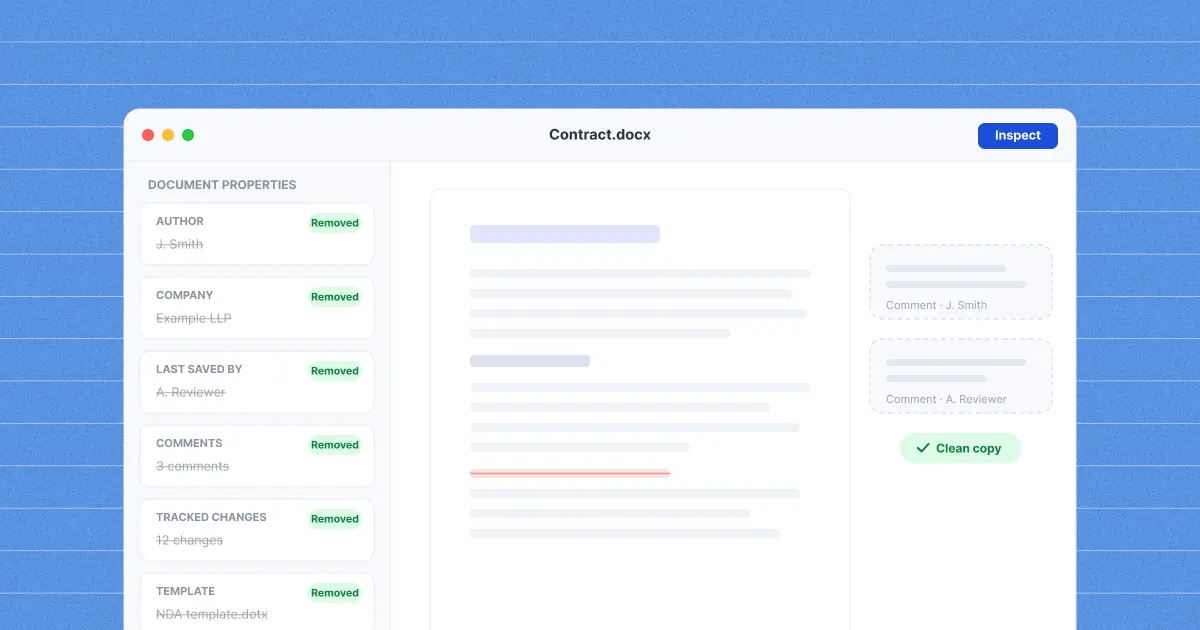
- Clean the PDF first. A PDF you publish can carry the author's name, the software used and timestamps. Remove the metadata before it goes online.
- Put it online somewhere you control and copy its link (see the options below).
- Check the link works for everyone. Open it in a private browser window, signed out. If it asks you to sign in or request access, the code won't work for others either.
- Make the code. Open the free QR code generator, choose PDF, paste the link and download the code as SVG for print or PNG for screens. It runs in your browser, so not even the link is uploaded.
- Test it on a phone, using mobile data rather than your office Wi-Fi, before you print.
Where to put the PDF
| Option | How to get a link | Good to know |
|---|---|---|
| Your own website | Upload the file and copy its address | The most control; replace the file at the same address to update it |
| Google Drive | Share > General access > Anyone with the link (Viewer), then copy the link | Opens Drive's preview first, with a download button |
| OneDrive or Dropbox | Share, set to anyone with the link can view, then copy the link | Work accounts may block links that anyone can open |
Whichever you choose, the link must stay alive: if you delete the file or turn sharing off, the code still works but leads nowhere. And anyone who has the code can open the PDF, so don't use this for documents that should stay private.
How to update the PDF without changing the code
A static code always opens the same link, so to update the document, replace the file behind that link rather than making a new code:
- On your website, upload the new version with the same file name, in the same place.
- In Google Drive, right-click the file and use Manage versions > Upload new version. The link stays the same.
- In other services, look for a replace or new-version option rather than uploading a second copy, which gets a new link.
Make sure the code scans
- Print it at least 2 cm (0.8 in) wide, larger for posters read from a distance.
- Keep the white border around the code, and keep it dark on a light background.
- Prefer a short link. Long links make denser codes that are harder to scan when printed small.
- Test the printed copy, not just the screen.
Putting the code into a Word document? See how to create a QR code in Microsoft Word.
The takeaway
A QR code for a PDF only needs a link. Host the PDF where you control it, clean it before you publish it, and make a static code that points straight at it. You keep the file, the code never expires, and you can update the document later without reprinting. Make yours with the free QR code generator.