Guide
How to Merge or Join PDFs Offline on Mac and Windows (No Uploads)
November 12, 2026 · 3 min read
Joining a few PDFs into one file is one of the most common document chores there is. But the quickest-looking option, an online ‘merge PDF’ site, means uploading your files to someone else's server. If the documents are sensitive, you want to merge or join PDFs offline instead, with nothing leaving your computer.
Here is why offline matters, and how to do it on both Mac and Windows.
Why merge PDFs offline?
Online PDF mergers are fast and free, and for a travel itinerary they are fine. For work documents they carry the same risk as any upload tool:
- Your files are transmitted to, and often stored on, a third-party server.
- You cannot prove they were deleted afterward, which matters for anything under NDA, GDPR or HIPAA.
- Merging often happens right before sending, exactly when the combined file is most sensitive: a signed contract pack, a board deck, a set of patient records, a grant application with appendices.
Merging offline removes that risk. The file never leaves your machine, so there is nothing to upload, cache or leak.
How to merge PDFs offline on a Mac
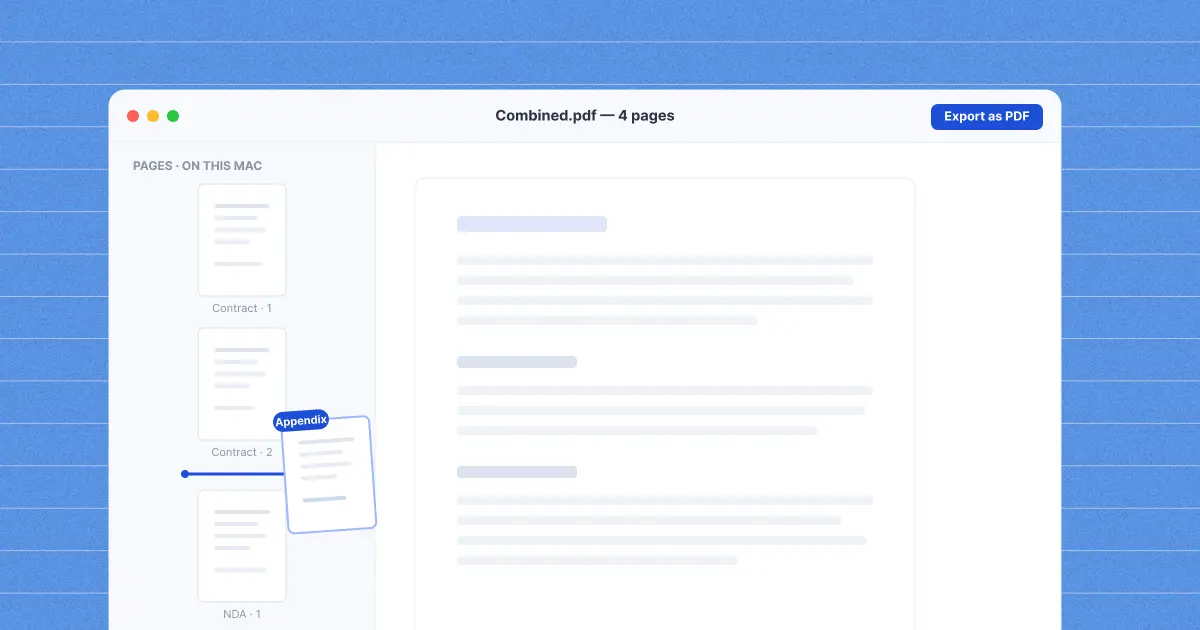
macOS can combine PDFs with no extra software, using Preview:
- Open the first PDF in Preview.
- Show the sidebar (View, then Thumbnails) so you can see the pages.
- Drag another PDF file into the sidebar, dropping it where you want its pages to go.
- Reorder pages by dragging their thumbnails.
- Choose File, then Export as PDF, to save the combined file as a new document.
Preview is local, so nothing is uploaded. Its limits show up when you need to merge many files at once, keep a consistent order across a large set, or strip metadata as you go.
How to merge PDFs offline on Windows
Windows has no built-in PDF merger, so you have two offline options:
- A desktop PDF editor (the paid kind) can combine files locally. Use its ‘combine’ or ‘merge’ feature and save a new file.
- A dedicated local tool. Install an app that runs entirely on your machine rather than a website. Check that it works offline and does not send your documents anywhere.
Avoid the free online mergers for anything confidential, however convenient they look.
Merge cleanly, not just quickly
However you combine files, a good merge is more than stacking pages:
- Get the order right before you export, so you do not have to redo it.
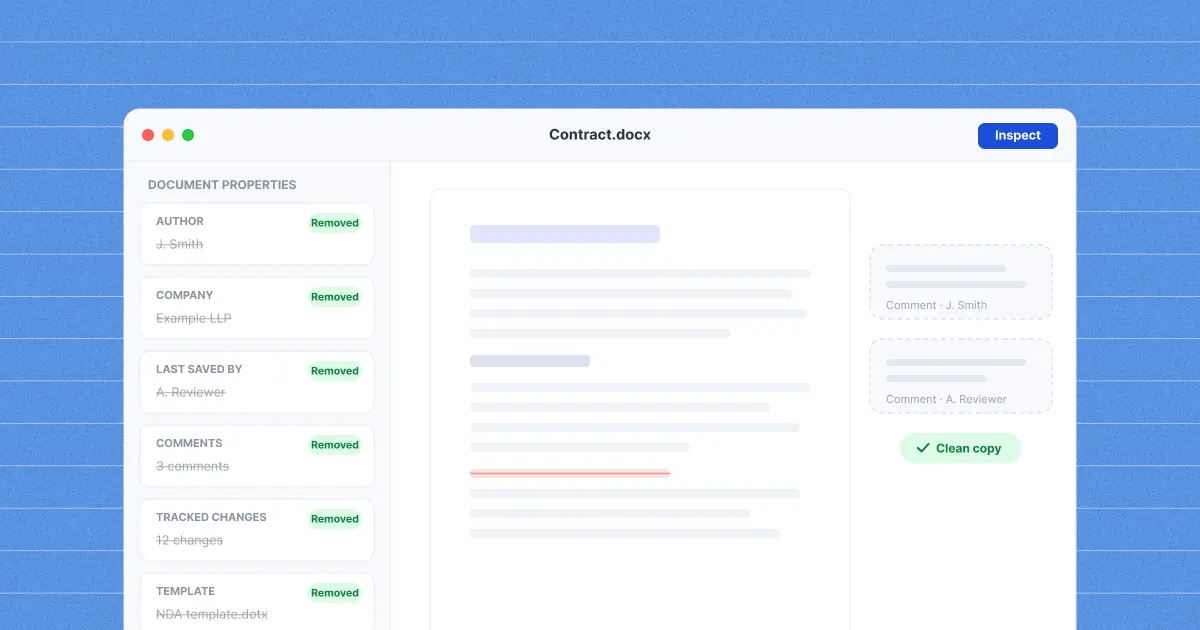
- Watch the metadata. A merged PDF can inherit author names and timestamps from every source file. Strip them before sending. See how to remove metadata from a PDF offline.
- Save a new file rather than overwriting an original, so you keep the parts as well as the whole.
The takeaway
Merging PDFs is simple; doing it without uploading sensitive files takes one deliberate choice. On a Mac, Preview handles small jobs offline. On Windows, use a local editor or a dedicated offline app, not a website. For larger sets, or when the combined file has to be clean of hidden data, a local tool built for sensitive documents is worth it. See how legal, finance and research teams work this way in our use cases.