Guide
How to Remove Metadata from a PDF (Offline, Without Uploading to an Online Converter)
November 12, 2026 · 4 min read
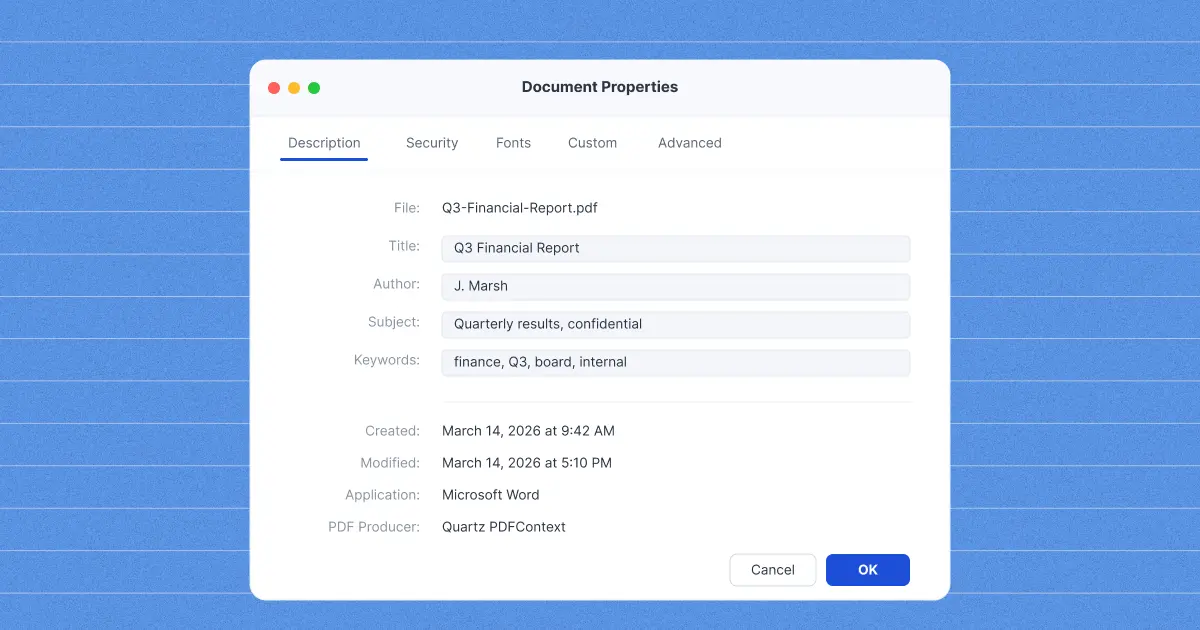
A PDF looks like a flat, finished document, but it quietly carries metadata: the author's name, the software that made it, timestamps, and sometimes more. If you work with confidential files, you need to remove metadata from a PDF before you send it, and you need to do it without uploading the file to a stranger's server.
This guide explains what a PDF stores, why it matters, and how to strip it offline.
What metadata does a PDF carry?
Most PDFs include a document information dictionary and an XMP metadata block. Between them, a single file can expose:
- Author and creator names, and the organization that produced the file.
- The software that created and last wrote it (the ‘producer’), down to the version.
- Creation and modification timestamps, which reveal when you really worked on it.
- Title, subject and keywords carried over from the source document.
- Leftover structure: comments, annotations, hidden layers, bookmarks and, in some exports, fragments of the original file's path.
None of this shows on the page, so it is easy to forget it is there.
Why removing PDF metadata is important for some documents
For anyone handling sensitive documents, hidden metadata is a quiet liability:
- Legal. A contract or filing sent to the other side can reveal who drafted it, when, and on what template, undercutting a negotiating position or a blind filing.
- Finance and healthcare. Reports that leave your organization under NDA, GDPR or HIPAA should not carry author identities or internal system details.
- Research. A manuscript submitted for double-blind review must not name its author anywhere, and PDF metadata is exactly where a name slips through.
Why online metadata removers are the wrong tool
Search ‘remove metadata from pdf’ and most results are websites that ask you to upload the file. For an ordinary document that is fine. For a confidential one, the upload is the problem: your file is transmitted to, and often stored on, a server you do not control, and ‘we delete it after processing’ is a promise you cannot verify. For privileged or regulated material, that upload can itself be the breach you were trying to avoid.
How to remove metadata from a PDF offline
The safe principle is simple: the file should never leave your machine. Working offline:
- Inspect what is there first. Open the PDF's properties and read the author, producer, dates, title and keywords. You cannot remove what you have not seen.
- Clear the document information and XMP. Strip author, title, subject, keywords, producer and timestamps. A thorough tool removes both the info dictionary and the XMP block, since leaving one behind is a common mistake.
- Handle the extras. Review comments, annotations, bookmarks and hidden layers, and remove the ones that should not travel with the file.
- Save a clean copy. Export a new file rather than overwriting the original, so you keep a working version and share only the sanitized one.
- Verify. Reopen the exported PDF and check the properties again. The author and producer fields should be empty or generic, and the timestamps should no longer tell a story.
Redacted PDFs: black boxes don't remove metadata
Redaction is where hidden data does the most damage, because the whole point of the document is that something has been removed. Two things often survive:
- The text under the boxes. A black rectangle or highlight drawn over text only covers it. The words are still in the file, and anyone can copy them or search for them. Use a true redaction tool that deletes the content (in Adobe Acrobat, the Redact tool, then apply the redactions) rather than drawing shapes.
- The metadata. Redacting page content does not touch the document properties. The title, subject or keywords can still name the person or matter you redacted, and the author field still shows who prepared it. Clear them as well, using the steps above.
Before filing or sending a redacted PDF, search it (Ctrl + F) for a word you removed, try copying the redacted areas, and check its properties. If any of those still show the redacted information, the redaction didn't work.
A quick pre-send checklist
- Author, creator and company fields cleared.
- Producer and software version removed or made generic.
- Creation and modification timestamps stripped.
- Title, subject and keywords cleared if they reveal anything.
- Comments, annotations and hidden layers reviewed.
- Redacted text truly removed: searching for it finds nothing.
- Saved as a new copy, not the original.
- Nothing was uploaded to do any of it.
The takeaway
Removing metadata from a PDF is a small step with a big payoff for anyone under NDA, privilege or privacy rules. The one rule that matters: do it offline, so the file you are trying to protect never has to leave your control. If you also work in Word, the same hidden-data problem applies there. See how teams handle both in our use cases, or read about merging PDFs offline.
Sharing the cleaned PDF on a flyer or a slide? See how to make a QR code for a PDF that never expires, using our free QR code generator.